
How to Extract and Trim Audio from a Video
EditVaultz Audio Extractor decodes a media file with your browser and exports the selected audio as WAV or MP3. It can also trim a range and apply fades. Use a recording you own or have permission to process; extracting a soundtrack does not grant rights to reuse it.
Use the actual tool alongside this walkthrough.
Open Audio Extractor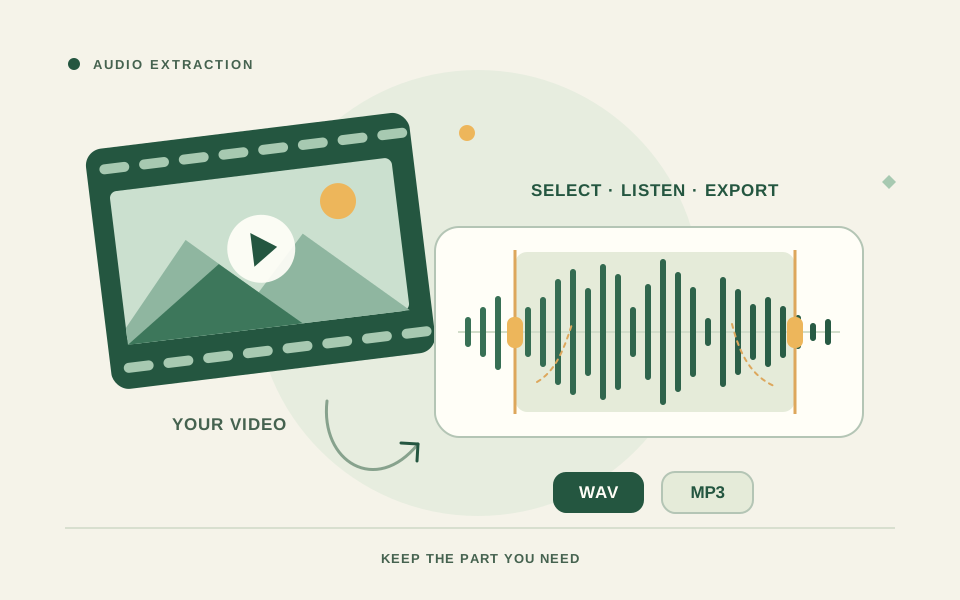
Start with a short supported media file
Open Audio Extractor and select a video or audio file. MP4 and WebM are common examples, but successful decoding depends on the audio codec and your browser. A recognized extension does not guarantee support, and a video without a usable soundtrack cannot produce an audio result.
Current guards limit the source to 75 MiB and five minutes. Decoded audio must be mono or stereo, at no more than 48 kHz, and within the 128 MiB decoded-PCM budget. The browser decoder can affect the returned sample rate; a source that exceeds the admission checks needs preparation in another editor first. The tool decodes the source before trimming, so choosing a short range does not bypass the source limits.
Choose the range and listen
After the waveform loads, set Start and End for the section you need. Use the range preview to listen before exporting. Choose fade-in and fade-out durations when a hard edge would be distracting; keep them appropriate for the selected range.
For example, take a short voice segment from your own demonstration recording and fade its beginning and ending to fit a presentation. This describes a workflow, not a fabricated extraction result or proof of permission for someone else’s media.
Choose WAV or MP3
WAV stores PCM audio and is usually larger. MP3 is a lossy format with the tool’s available 128, 192, 256 or 320 kbps settings. A higher bitrate may retain more encoded detail, but it cannot restore detail missing from the original recording.
Select Export Selected Audio, wait for the result, then use Download. Listen to the output and confirm its duration. Keep the original source until you know the exported section includes everything you need.
Fix decode and resource-limit failures
If your browser cannot decode the soundtrack, try another current browser or re-export the original using a codec that your browser supports. MP4 with AAC audio is a common candidate, not a guarantee for every file or browser. Renaming a file does not change its codec.
For an empty, oversized, too-long or multi-channel source, create a smaller valid mono/stereo clip in another editor before loading it. Close unnecessary tabs if memory is constrained. A file without audio must be replaced by a source with a usable audio track.
What the tool does with your media
The selected file is read and decoded into browser memory, then trimmed, faded and encoded locally. It is not uploaded to an extraction server. Application and encoder assets still load as needed over the network. The current pipeline keeps the decoded source in memory, which is why source-duration and memory guards matter.
Frequently asked questions
Does this support every MP4 or WebM file?
No. Container labels do not identify every codec inside a file. Support depends on the browser’s media decoder and the tool’s source and decoded-audio limits.
Does selecting ten seconds allow a long source?
No. The entire source is decoded before range editing. Prepare a shorter source within the five-minute and file-size limits first.