
How to Choose and Convert an Image Format
An image extension is not just a label. Changing JPEG, PNG or WebP means decoding the source and encoding a new file. EditVaultz Image Converter performs that work locally and lets you review the resulting files before downloading.
Use the actual tool alongside this walkthrough.
Open Image Converter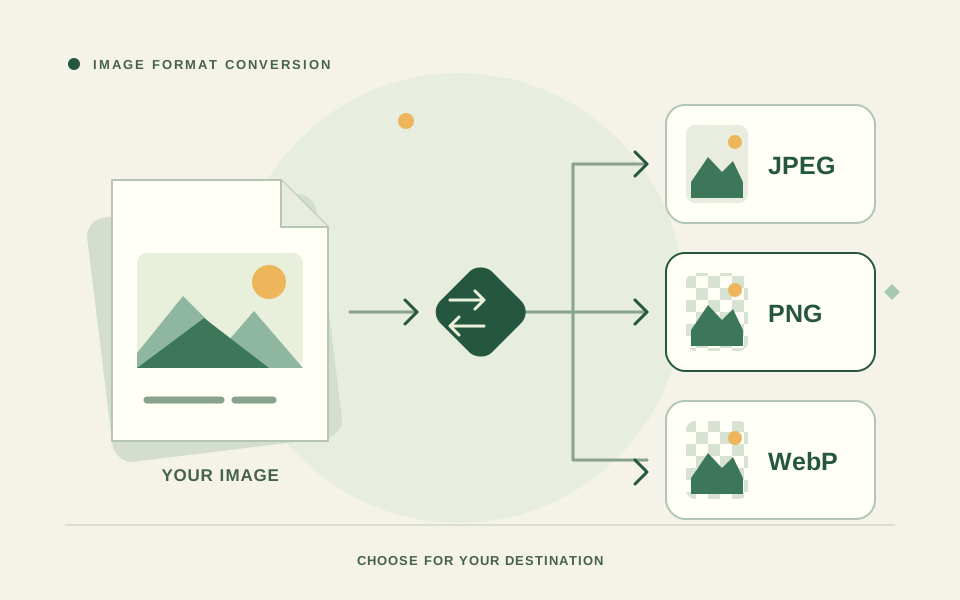
Add a file or a small batch
Open Image Converter, then select or drop JPEG, PNG or WebP images. The current batch limit is 20 files, with up to 50 MiB per file, labelled 50 MB, and a 100-megapixel decoded-image guard per image. Use fewer and smaller files if your device struggles with the batch.
This tool does not currently accept HEIC, AVIF, GIF, SVG, PDF or raw camera files. A renamed extension will not bypass content validation. Export a supported image from another application first when necessary.
Choose the output your destination needs
Select JPEG, PNG or WebP as the output. JPEG is a lossy format without transparency. PNG can preserve an alpha channel and is useful for graphics needing that transparency. WebP also supports transparency here, with quality settings affecting its encoding. The receiving website or application must accept your selected format.
Quality controls for JPEG and WebP and optimization effort for PNG affect the result. No single setting is best for every photo or illustration, and converting to another format can produce a larger file.
Handle transparent images deliberately
If a source has transparency and JPEG is selected, choose the replacement background shown by the tool: white, black or a custom color. Review the result around the subject. If the surrounding page needs to show through, choose PNG or WebP instead of JPEG.
For example, a transparent logo can be exported as JPEG for a document that specifically requires a white-backed JPEG. That changes the background; it is not a transparent version of the same logo.
Convert and download
Select Convert Image or the batch conversion action and wait for the individual results. Inspect the previews and actual file sizes. Download individual outputs, or use Download ZIP when multiple results are available. Keep the originals until you have confirmed that the destination accepts the outputs.
Recover from a failed conversion
A corrupted file or unsupported source must be re-exported; changing an extension is not enough. If a large batch is slow or runs out of memory, remove items and convert fewer images at once. Try a current browser if decoding fails for an otherwise valid source.
The encoder assets load when needed. A browser-native fallback may produce a different result when the preferred codec cannot load. Compare the actual output instead of assuming a fixed size reduction or identical visual quality.
Where conversion happens
The selected images are decoded and encoded in your browser rather than uploaded for conversion. The application and codec assets still require normal network loading. ZIP creation uses the converted local outputs, not a remote conversion service.
Frequently asked questions
Can changing .png to .jpg convert the file?
No. Renaming an extension does not re-encode the pixels. Choose a valid supported source and use the converter to create a real output file.
Will conversion keep transparency?
PNG and WebP can retain transparency. JPEG cannot; the tool lets you choose a replacement background when converting a transparent source to JPEG.