
How to Remove an Image Background and Check the Edges
Background removal estimates which pixels belong to a subject. EditVaultz runs that inference in your browser, then offers controls to refine the result. Fine hair, glass, motion blur and similar foreground and background colors can still need correction.
Use the actual tool alongside this walkthrough.
Open Background Remover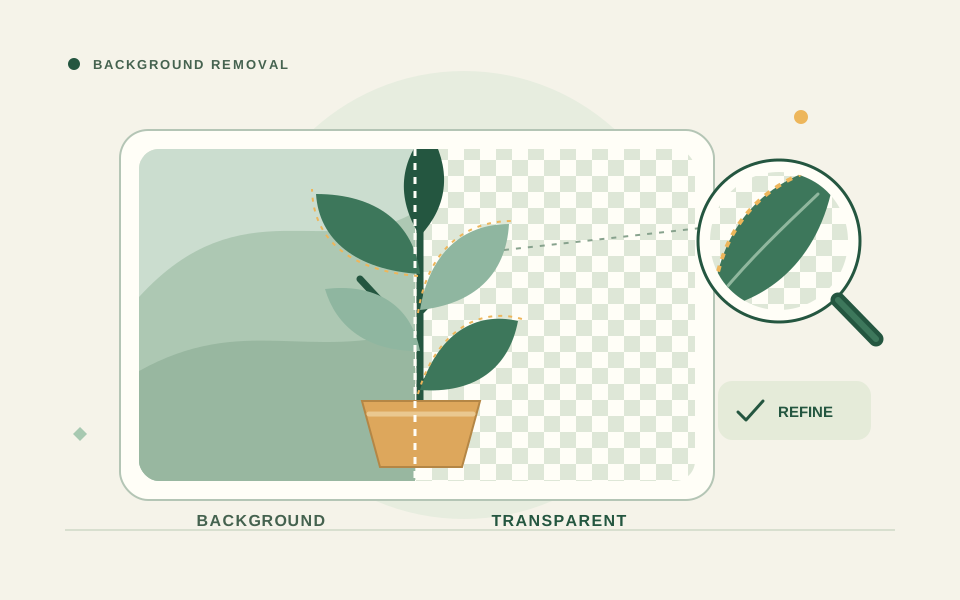
Choose a supported image and mode
Open Background Remover and select JPEG, PNG or WebP. The source-file guard is 25 MiB. Fast accepts up to 24 megapixels and HD up to 12 megapixels; practical limits also depend on device memory. These caps are lower than the other image tools because inference and editing retain extra buffers.
Fast — People is the lighter starting point for portraits and phones. HD — General uses a larger model for broader subjects. Neither mode guarantees a perfect cutout. If HD is too heavy or fails, try Fast with a smaller source.
Select the focus area and begin processing
At the focus step, choose Crop or Draw if you want to isolate the relevant subject, or Skip to process the whole image. Review the crop before applying it. The chosen model and runtime assets download on first use, so an initial run can take longer than a later cached run.
Keep the tab open while processing. HD requires a much larger download and more memory than Fast. Do not assume the tool is ready offline before those assets are available; network restrictions or browser support can prevent a model from loading.
Inspect and refine the mask
Check the subject against transparent and solid backgrounds so missing or leftover areas are visible. Use Refine to erase unwanted regions or restore parts of the subject. Feather and expand/contract controls alter the edge; make small changes and inspect them before adding an outline or shadow.
For example, a portrait with a background close to the shirt color may need a restored shirt edge. The workflow illustration shows the aim of a transparent cutout, not an actual AI result or a promise that every portrait will separate cleanly.
Export with the background you intend
Choose transparent, white, black or a custom background, then select PNG, WebP or JPEG export. Use PNG or WebP for transparency. JPEG cannot preserve transparency and applies a white background to transparent areas; inspect the warning and preview before downloading.
Review the saved file in its intended layout, especially around hair and small objects. A checkerboard in the editor indicates transparency; it should not be mistaken for the background you want in a final JPEG.
Recover from model, memory and edge problems
If a model download fails, check your connection or network blocking and try again. If HD fails or the device becomes slow, use Fast, reduce source dimensions or close extra tabs. For unsupported or damaged images, re-export a valid JPEG, PNG or WebP.
If the model removes part of the subject, use Refine rather than repeatedly expecting the same input to produce a different perfect result. More detailed subjects may need manual work in another editor. The tool does not promise instant results or universal browser support.
Local inference is different from no network
The image-processing path runs locally: the selected image is not uploaded to a background-removal server. Model and runtime assets are downloaded from external providers, including the configured Hugging Face models. Those asset requests are necessary for inference; local image processing does not mean an entirely offline or network-free website.
Frequently asked questions
Why is the first run slower?
The model and runtime need to download and initialize. HD uses a substantially larger model than Fast. Browser caching may help later runs, but it is not guaranteed to remain available.
Why did a JPEG lose transparency?
JPEG does not support an alpha channel. Select PNG or WebP with a transparent background and review the export when transparency matters.