
How to Resize an Image for the Frame You Need
Changing dimensions and fitting a picture into a new shape are different decisions. EditVaultz Image Resizer provides pixel, percentage and preset controls, plus Fit and Fill for preset frames. Start with the space your image needs to occupy.
Use the actual tool alongside this walkthrough.
Open Image Resizer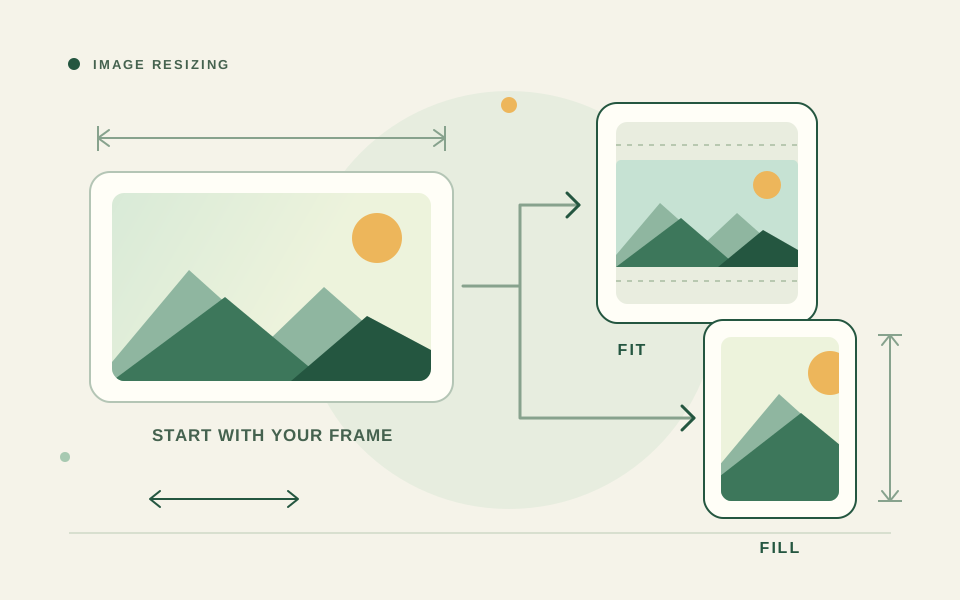
Load a supported source
Open Image Resizer and choose a JPEG, PNG or WebP. It accepts one image at a time, with a 50 MiB file limit, labelled 50 MB, and a 100-megapixel decoded-source guard. Pixel-dimension controls allow 1–16,384 pixels per side, but large output canvases can still exceed practical browser memory. Choose modest output dimensions and a smaller source on memory-limited devices.
Keep a copy of the original. A crop or a reduction removes information from the exported result, and increasing dimensions later cannot recreate detail that was not present.
Choose pixels, percentage or a preset
For an exact width, use the pixel controls and keep aspect ratio locked when you want the whole picture to retain its proportions. Percentage scales relative to the original dimensions. A social preset supplies a target frame; check the receiving service’s current requirements when they matter rather than treating a stored preset as a permanent platform rule.
The tool also provides crop and brightness, contrast and saturation controls. Review those changes before exporting. If no dimensions, crop, format or other effective setting has changed, the tool can show that no resize is needed.
Understand Fit and Fill
When a preset frame has a different aspect ratio, Fit keeps the whole picture visible and adds space around it. Choose the fit background that suits your design. Fill covers the frame by cropping part of the picture; use the crop position controls to keep the important subject visible.
For example, placing a landscape photo in a square frame with Fit leaves space above and below it; Fill fills the square but may remove content at the sides. The illustration shows that choice, not the output of a particular uploaded photo.
Export and check the actual result
Choose Original, JPEG, PNG or WebP output and the quality mode, then select Resize Image. Inspect the preview and the dimensions before downloading. PNG or WebP can retain transparency; JPEG flattens it. The tool shows a warning when the export would be larger than the source.
Enable Allow upscale only if you intentionally need a larger pixel frame. Upscaling can make an image larger without adding real subject detail. A smaller pixel count also does not guarantee a smaller encoded file if you change format or quality at the same time.
Fix common problems
If a preset is unavailable because it needs upscaling, choose a smaller preset or deliberately enable Allow upscale. If important content is missing, switch from Fill to Fit or adjust the crop position. If the output loses transparency, change JPEG to PNG or WebP and check the fit background.
For decode or memory errors, re-export a valid supported source and reduce its size. Keep the page open while processing. If you change settings after a completed resize, regenerate the result when the tool marks it stale rather than downloading a result from old settings.
Local processing and network assets
Resizing, crop adjustments and encoding run in your browser without uploading the selected image to a processing service. The page and necessary codec assets load over the network. Browser capability and available memory affect which files complete successfully.
Frequently asked questions
Should I use Fit or Fill?
Use Fit to keep the whole picture, accepting space around it. Use Fill to cover the entire preset frame, accepting and reviewing the crop.
Does a social preset guarantee acceptance?
No. A preset supplies dimensions, while a platform may also enforce current file-size, format, duration or other requirements. Check those requirements before publishing.